
Start with two decks
Practice ordinary playback and mixing before adding optional hardware or effects.
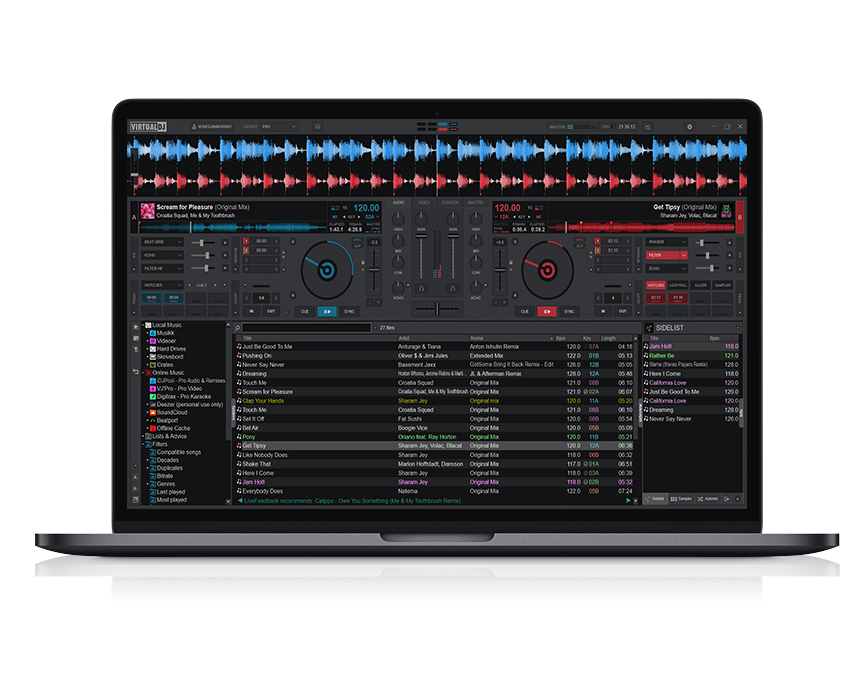
A useful way to evaluate DJ features is to start with an ordinary two-track mix. Compare the mixer, cue points and library tools before trying video playback, online catalogs or real-time stem separation.
Different workflows put different demands on the computer. Test demanding effects with the actual audio interface and files you intend to use, rather than assuming that every feature performs identically on every PC.
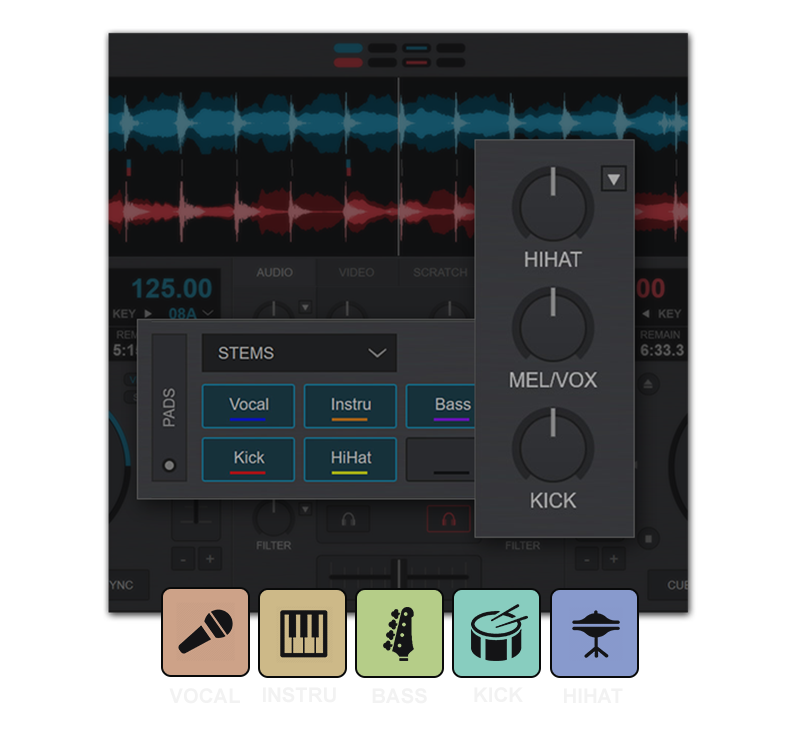
Separate elements of supported tracks to explore new transitions and combinations. Listen for artifacts and prepare the material you intend to use.
Check additional hardware requirements and provider restrictions; streaming permissions are not identical to local-file capabilities.
Use on-screen transport, EQ, level controls and cue points without requiring a physical controller. Start with two decks and build up your workflow gradually.
The mixer guide explains the signal path, output levels and headphone monitoring before more elaborate effects are introduced.
Practice ordinary playback and mixing before adding optional hardware or effects.

Review the intended use and exact controller rather than assuming that every feature is free.

Check the selected sound device and test master and headphone channels separately.
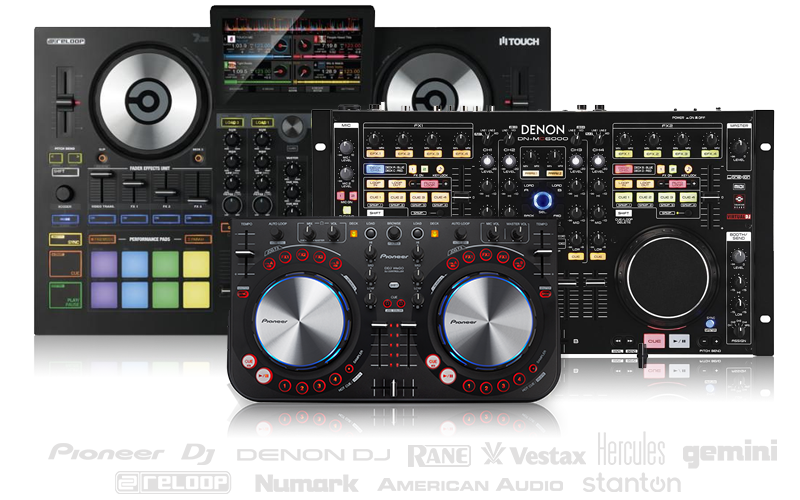
Use the exact hardware model to locate its driver and mapping instructions. Control signals and audio outputs are separate parts of the configuration.
Verify the latest license conditions and test speakers and headphones independently.
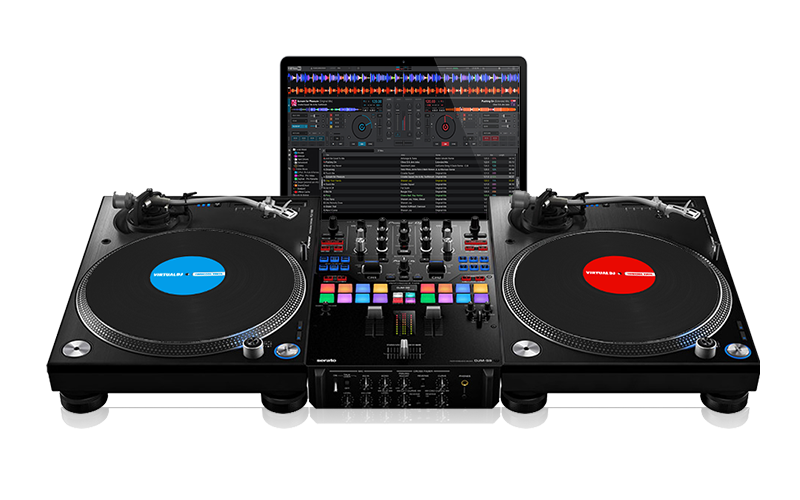
A timecode workflow connects compatible decks, input hardware and software settings. Review the device documentation before assigning inputs and outputs.
Confirm the signal path and intended license; a generic sound-card listing is not a tested configuration.
Video mixing adds a display path and a heavier workload to ordinary playback. Test the actual output resolution and external screen before relying on it.
Prepare the media you may use and keep an audio-only fallback for troubleshooting.
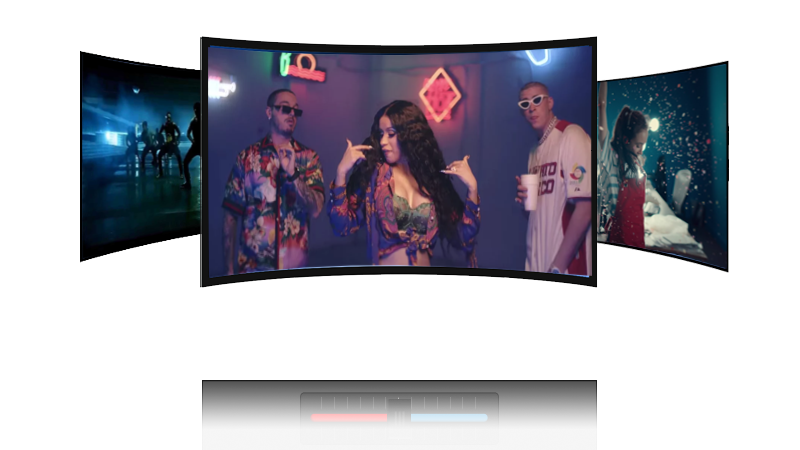
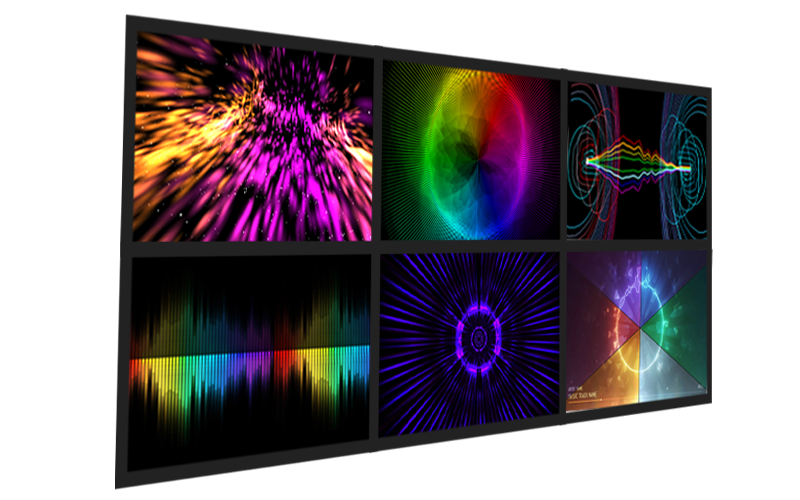
Visual displays can complement audio-only tracks. Choose a style suited to the screen and test how it behaves during the transitions you plan to make.
Avoid assuming that a visually complex effect will perform equally on every graphics device.
Video graphics can show useful information around a performance. Preview the result on the intended output rather than relying only on the laptop display.
Check that text and overlays remain readable at the actual presentation size.
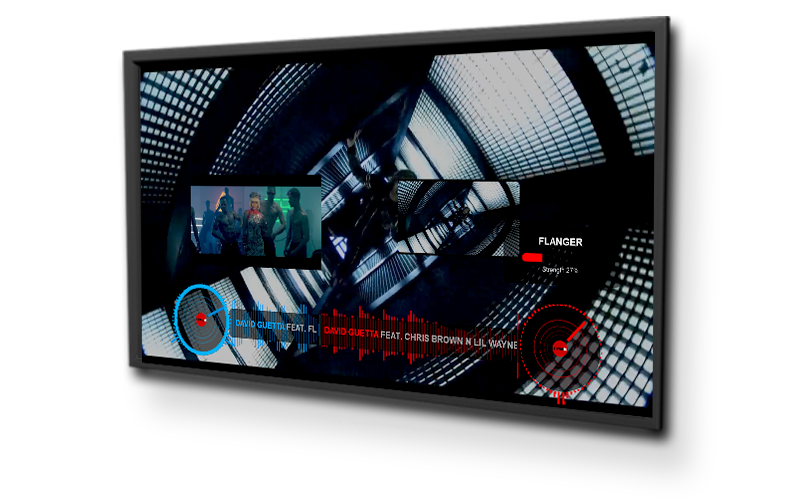
Karaoke work combines track selection, singer order and an audience display. Test the complete arrangement with appropriate source material.
Catalog permissions and output routing remain separate from the availability of a karaoke control.
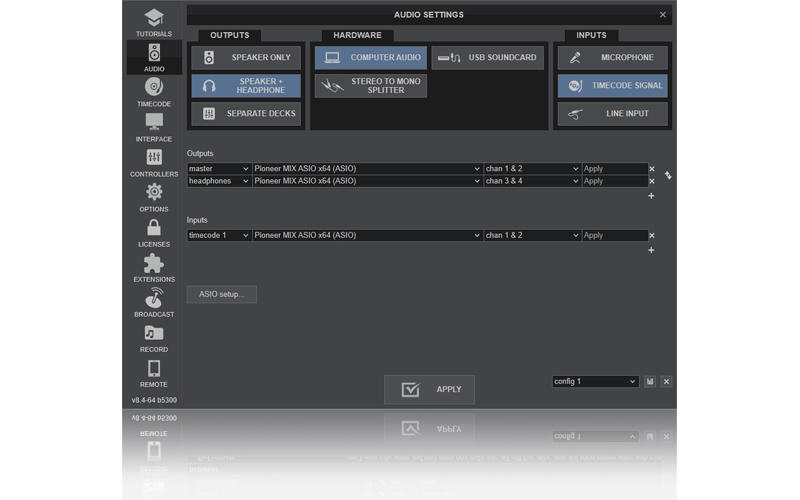
Good results depend on levels, routing, source material and the connected audio device. Establish a simple baseline before introducing more processing.
A high-level product feature is not a guarantee of distortion-free sound in every setup.
Learn how each effect changes the signal and how to return to normal playback. Use one controlled test rather than activating several effects to solve an unrelated problem.
Check optional extension compatibility with your build and preserve the default configuration.
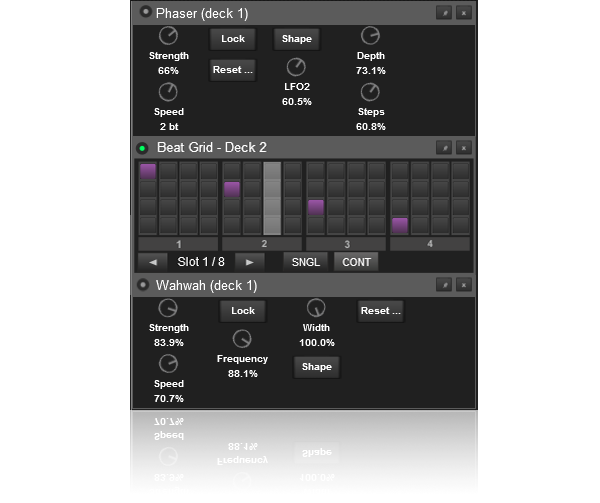
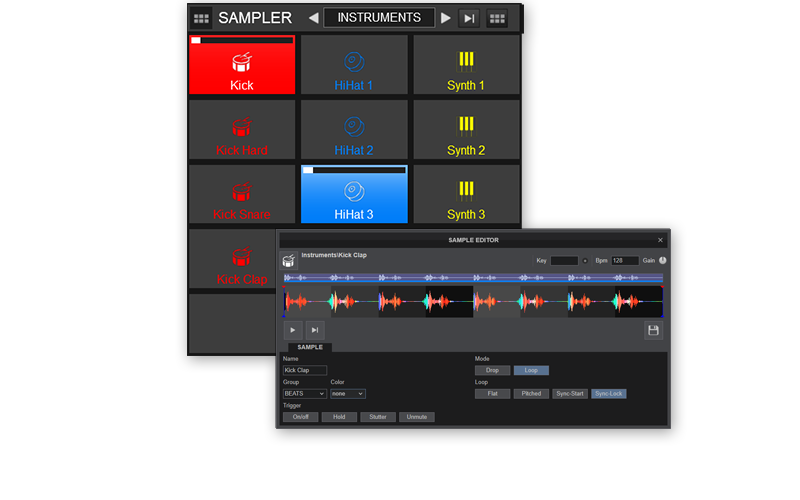
Organize samples so that the intended file and level are easy to find. Rehearse triggering and stopping them without disturbing the master mix.
Use material you are entitled to use and include custom content in your backup plan.
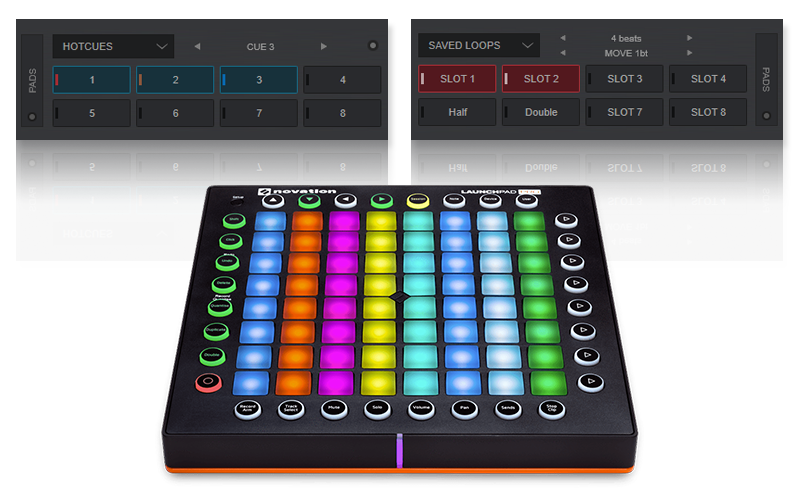
Pads can provide quick access to cues, loops and other actions. Learn the active pad mode before assigning important controls to a custom mapping.
Test one change at a time and save a working mapping before experimentation.
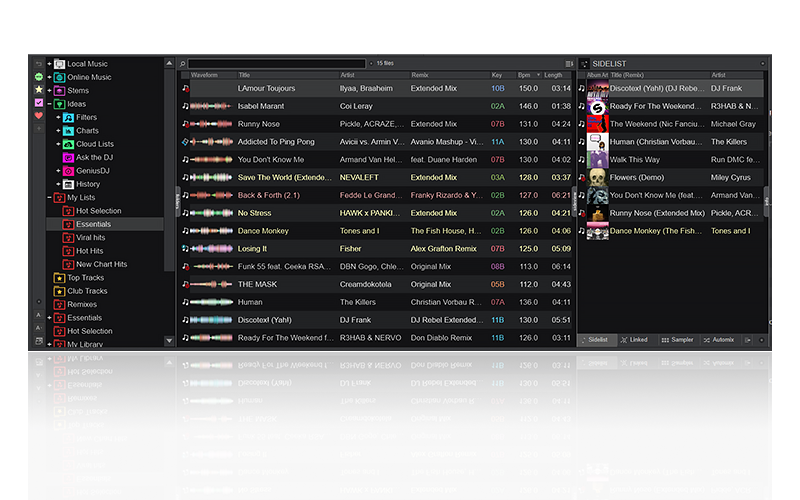
Music locations and application metadata both matter. Keep a clear folder structure and verify that a backup preserves the information needed for recovery.
Recheck paths, playlists and cues after moving files or updating the application.
Use playlists and filters to organize a practical subset of music for a task. A smaller, verified selection can be easier to troubleshoot than an unreviewed entire library.
Inspect the selected source when local tracks and online catalogs appear in the same workflow.
A record of previous selections can help with planning. Review it alongside your own session notes rather than treating a sequence of filenames as a complete performance record.
Keep relevant history and playlist information in your recovery plan.
Discovery lists can help identify music to review, but they do not guarantee suitability, availability or rights for your session.
Check the actual file or catalog source before depending on a discovered entry.
Cloud-oriented workflows depend on access to the relevant account and files. Visible metadata does not establish that audio is available offline.
Keep a local test set and verify any synchronization or authorization requirement.
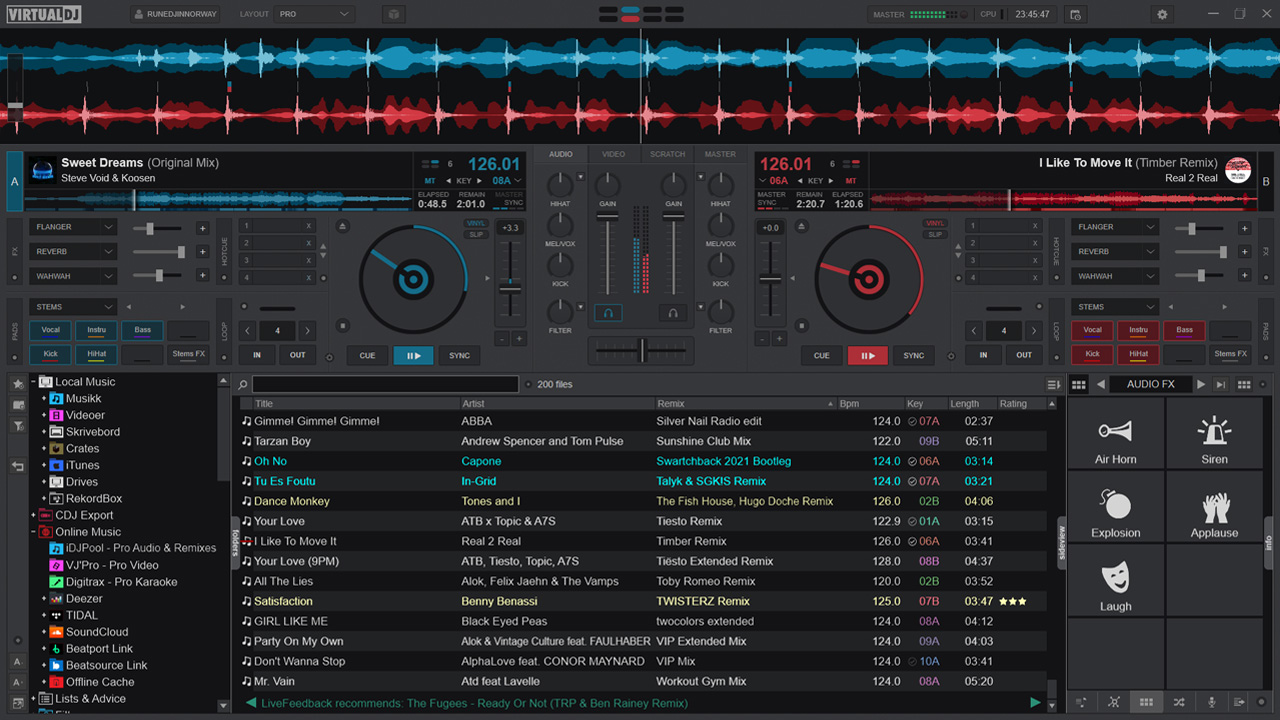
Automated transitions still benefit from appropriate music selection and review. Listen through a representative sequence before leaving it to run.
Check unusual intros, endings and timing rather than assuming every track boundary needs the same settings.
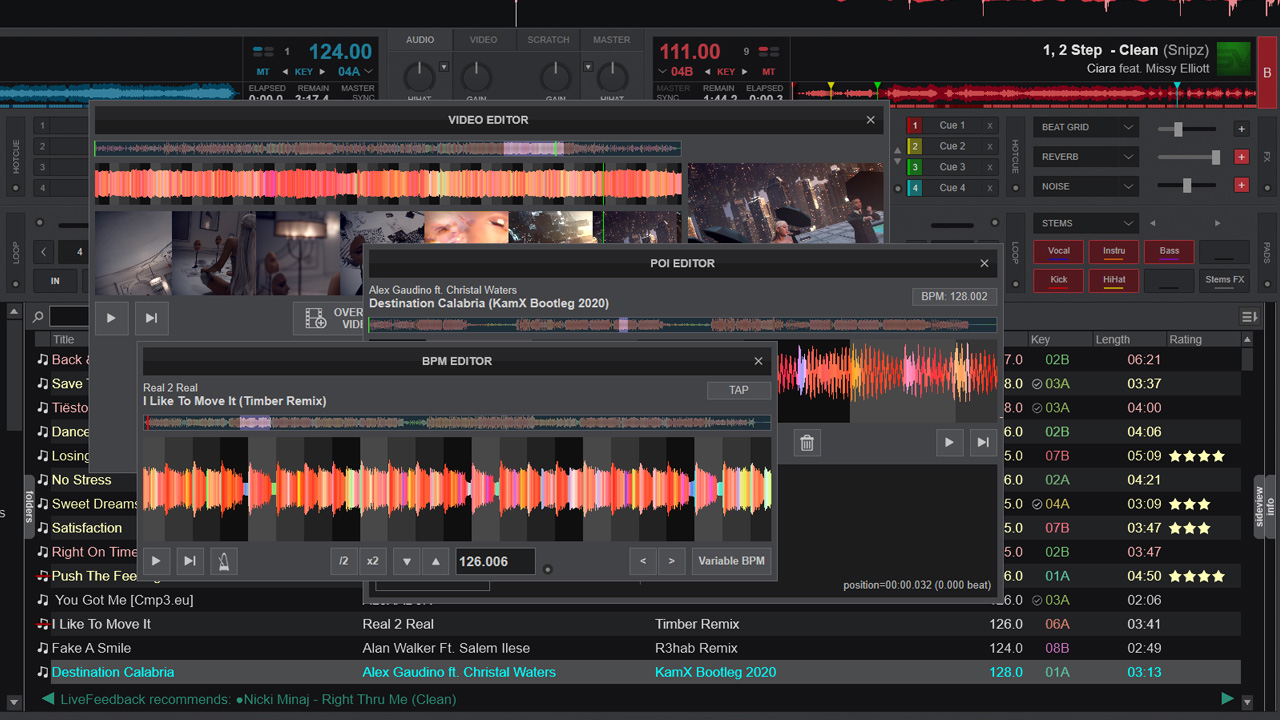
Use the relevant editor to inspect the part of a track that needs attention. Keep an original or recovery point before making substantial metadata or preparation changes.
Compare the edited result with normal playback and document what changed.
Broadcasting combines an audio path, network connection and the destination service. Test all three and confirm you may use the source material.
This website does not provide a broadcast server or a music-use license.
A video broadcast adds a capture and display workload. Test the chosen output and service with a short private rehearsal where supported.
Check the service rules and source permissions instead of assuming playback permission includes broadcasting.
Select a writable folder and make a short test recording. Play the saved file in a separate application to verify the actual result.
External mixing may need a return signal; some music services restrict recording.
Use preparation and preview features to rehearse without confusing the audience output. Verify what reaches the master before relying on a new workflow.
Practice with a controlled local set so that changes are easy to hear and reverse.
Accounts and catalog subscriptions are separate from the Windows installer. Follow the current provider sign-in instructions inside the application.
Stems, offline caching and recording permissions can vary by provider. See the current Spotify guide for its specific limits.
Use software suggestions to find candidates, then listen and check the context yourself. Track availability and a suitable transition still need verification.
Save a reviewed local alternative when depending on a network catalog.
A request workflow should be tested before you depend on it. Keep control over what is accepted and verify the music source before adding a requested item.
This site does not operate the publisher request service or collect audience messages.
Rehearse a technique with suitable material and consistent controls before using it in a set. Preserve your ordinary transport and cue setup.
Software assistance does not replace checking levels, timing and the actual sound.
Lighting control requires compatible equipment and a correct configuration beyond the mixer. Consult the relevant publisher and device instructions.
No physical DMX hardware compatibility test is claimed by this website.
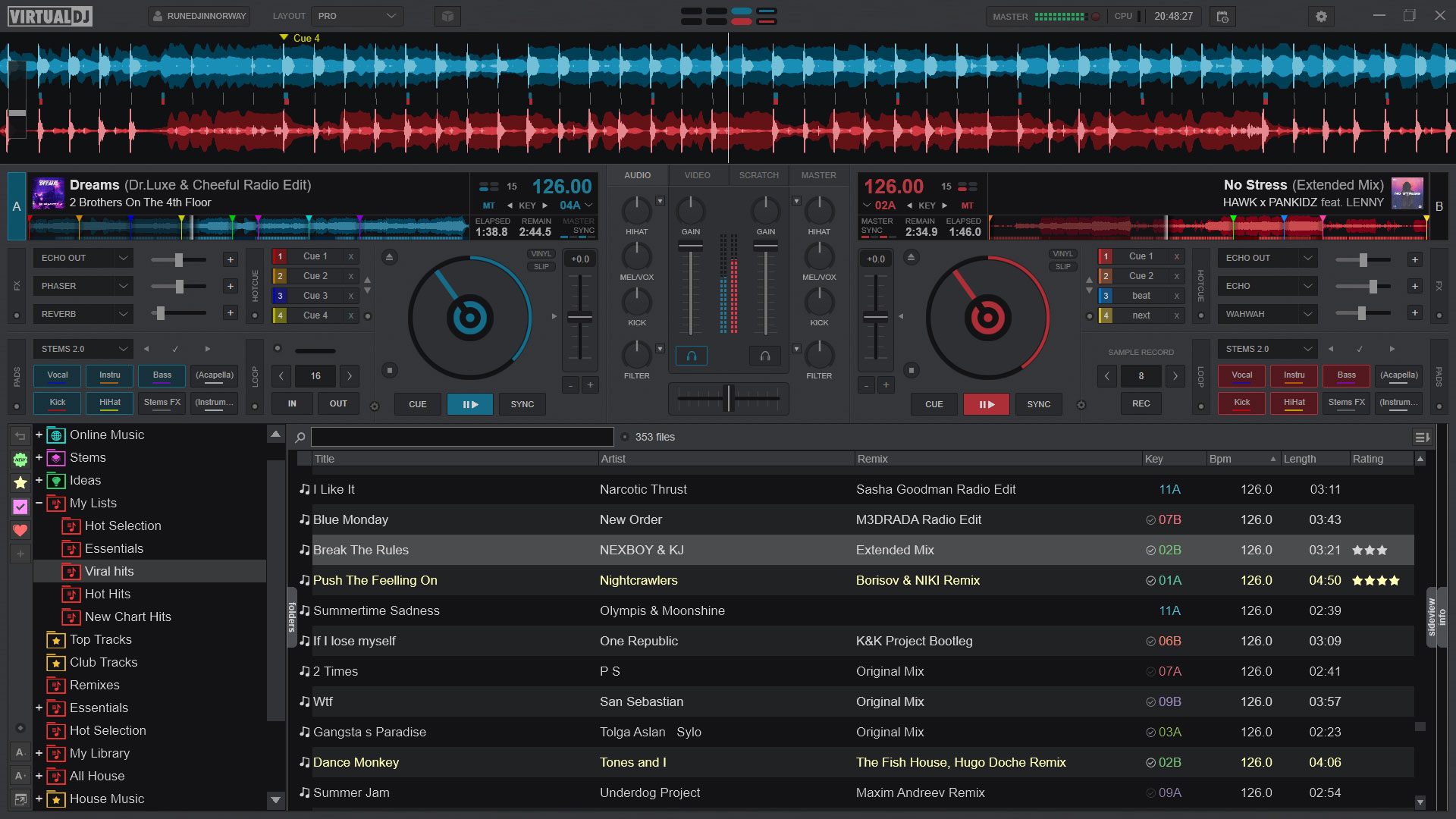
Compare starter, essentials and more advanced layouts in the screenshot gallery. Select the controls you need instead of adding complexity immediately.
Keep a default interface available when diagnosing a custom-skin problem.
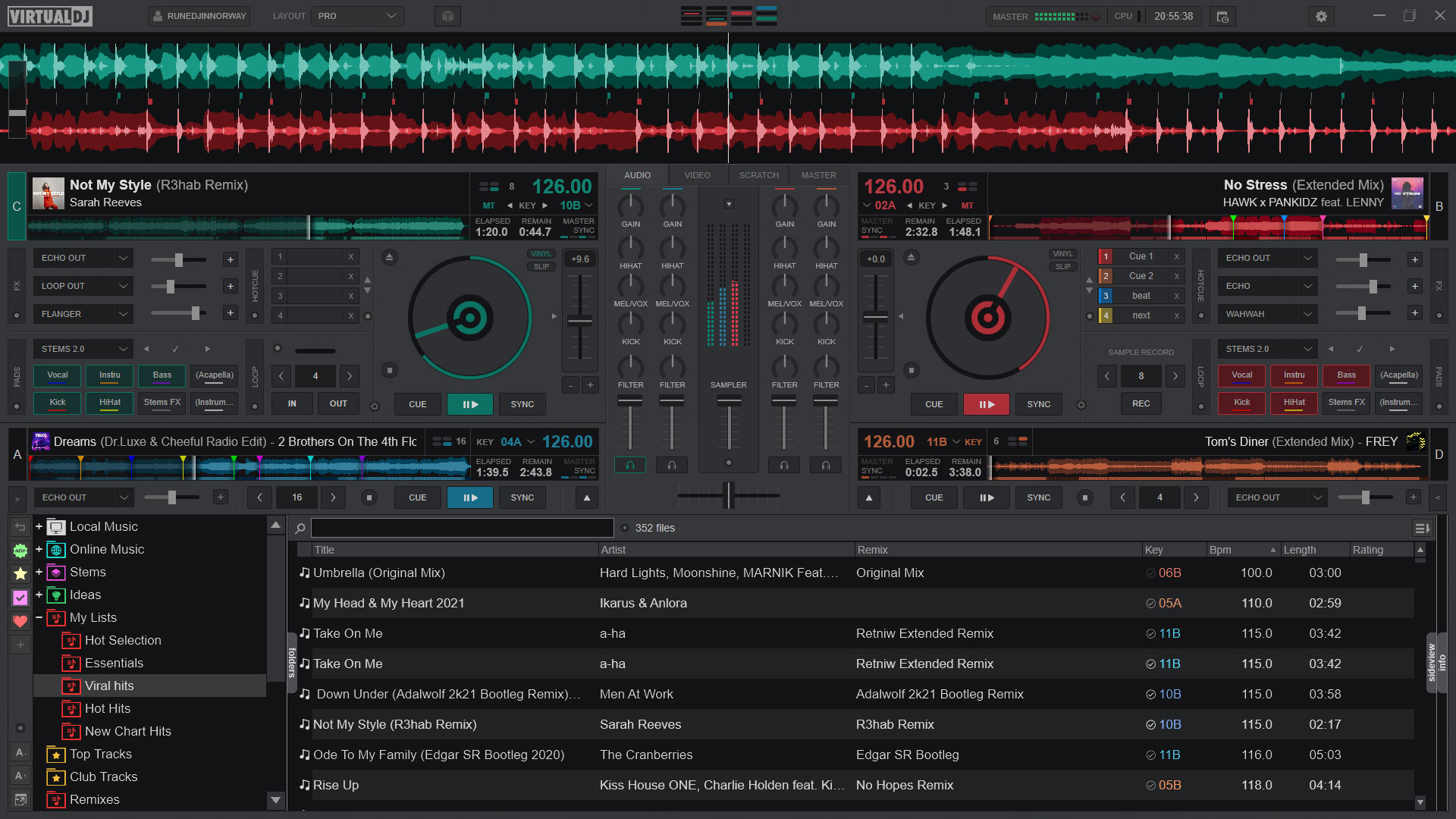
Document a working setup before changing options. A single reversible adjustment is easier to evaluate than a batch of unrelated tweaks.
Use the current manual to interpret settings that differ from an older tutorial.
This site focuses on the installed Windows application and its desktop audio workflow. The supplied archive included mobile-related promotional content, which is not a Windows download option.
Use the Windows guides to plan installation, cue output and controller setup.
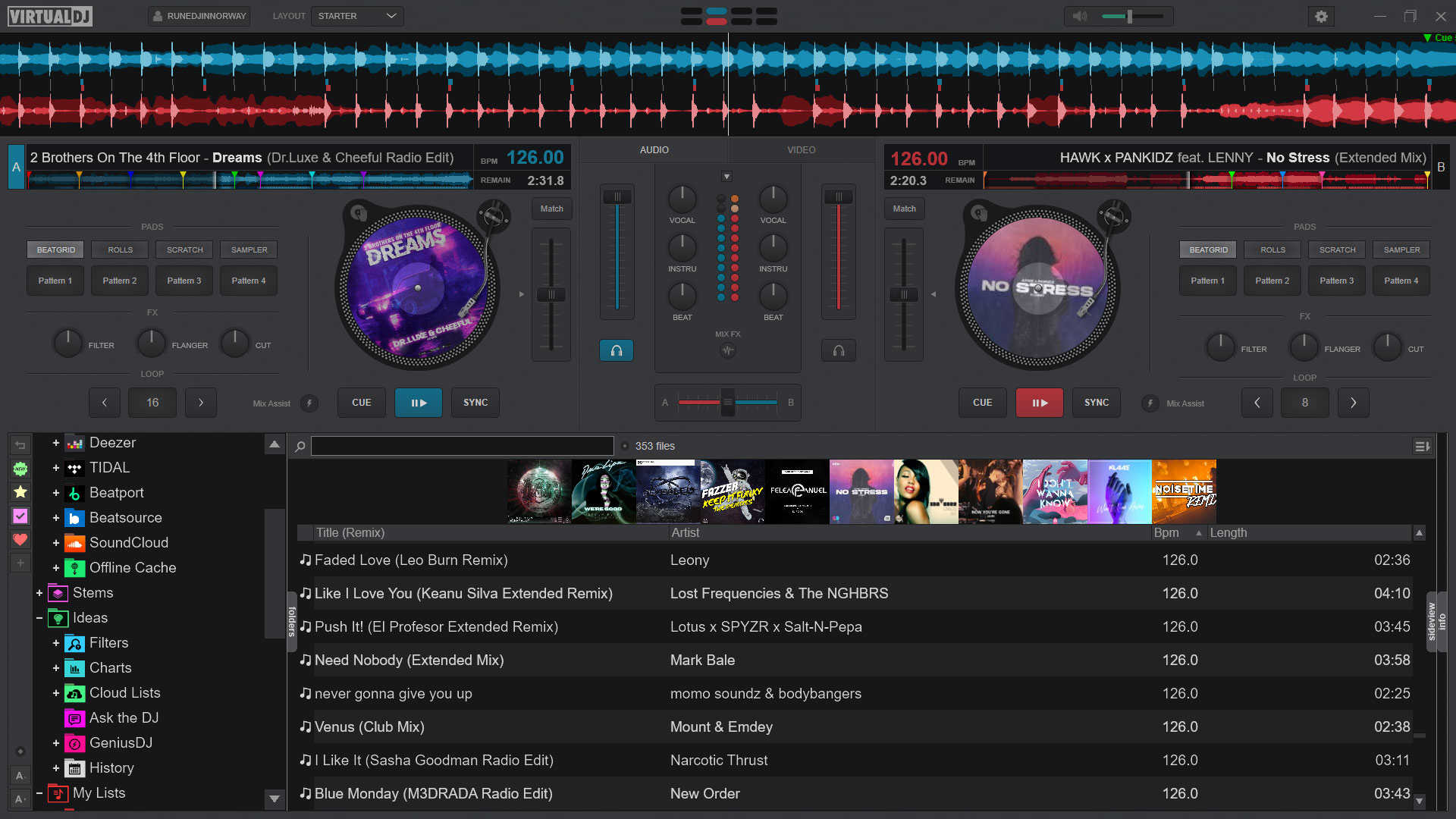
External inputs and synchronized systems need a clear signal path. Check the hardware connections and current documentation for the exact workflow.
Start from ordinary playback, then introduce one external dependency at a time.
VirtualDJ is often the proving ground for next level DJ software features, where new ideas come out long before others... Explore the features through your own Windows setup and the publisher documentation.
Often putting the other choices to shame is Virtual DJ. VirtualDJ delivers a wealth of features... Explore the features through your own Windows setup and the publisher documentation.
Virtual DJ is at the cutting edge of digital DJing today...impressive feature set... Explore the features through your own Windows setup and the publisher documentation.
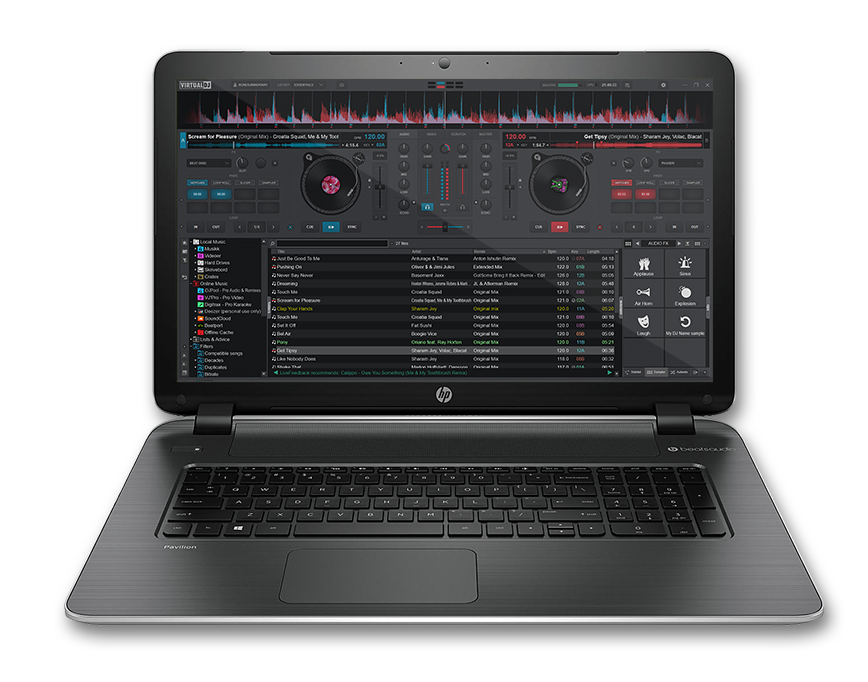
Documentation reviewed 2026-10-23. Practical guidance is not a claim of physical hardware testing.